
Gmail’s Priority Inbox was created to help you manage email chaos. It’s not just about seeing unread emails first; it’s about seeing the right emails. But what if you could train your inbox to show you what matters most? It’s time to unearth the best settings to do just that.
Understanding Priority Inbox
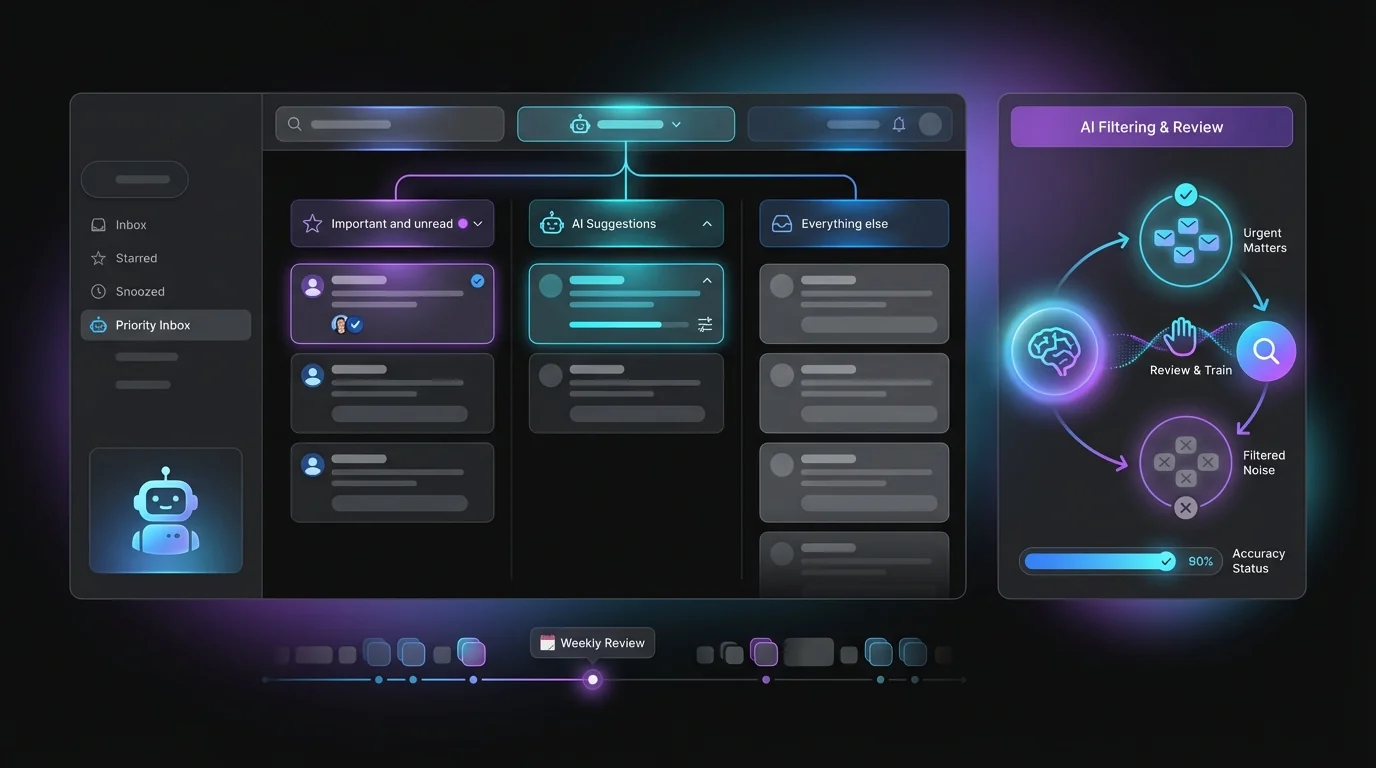
Think of Priority Inbox as your digital assistant. It sorts your emails into three main sections: “Important and Unread,” “Starred,” and “Everything Else.” Using its machine learning prowess, it predicts what’s important based on your email habits—like which emails you open or reply to most. If you want to mold it to fit your unique needs, you can manually adjust what’s marked as important.
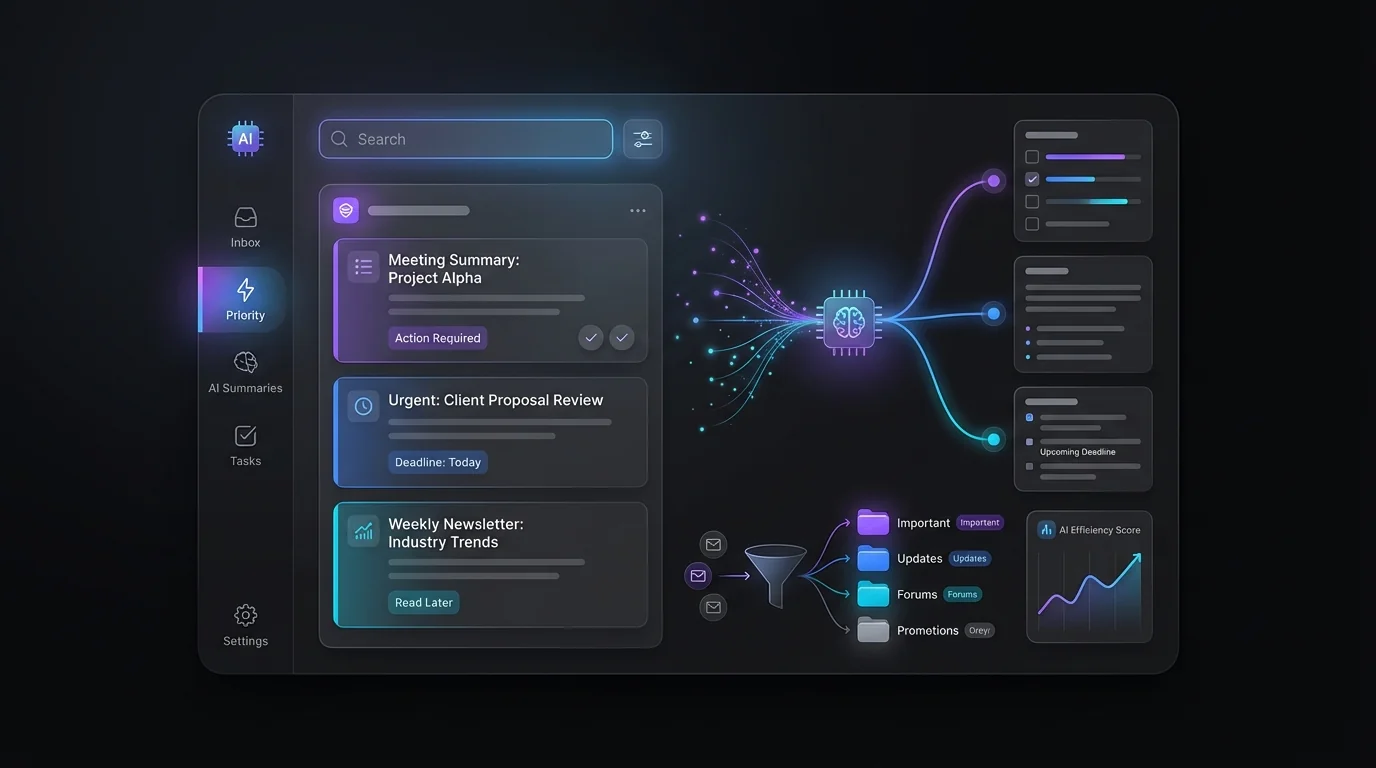
In 2026, Gmail introduced the AI Inbox powered by Gemini AI. This tool transforms your emails into actionable lists and summaries. Imagine having your inbox not just organized, but also proactive in helping you tackle tasks and pluck out key information.
Setting Up Priority Inbox
Initial Setup
To begin leveraging Priority Inbox, head over to Settings in Gmail, navigate to the Inbox tab, and select "Priority Inbox" as your preferred style. Once this is enabled, you can customize each section to ensure the right kind of emails pop up first.
Customizing Your Inbox
Digging deeper into customization means teaching Gmail what ‘important’ truly means to you. Begin by marking emails as important (or not) using the small arrow icons. Over time, this ongoing feedback helps improve the accuracy of Gmail’s selections.
Machine learning gets better with feedback. Mark emails continuously for a more tailored experience.
Embracing the Power of AI Inbox
Gmail’s new AI-powered features under the Gemini AI banner are designed to take your inbox a step further. With beta versions rolling out, users can now see task suggestions based on email content, thread summaries, and topic highlights. It’s like having a personal secretary that suggests what to focus on next.
The AI Inbox helps streamline your workflow by automatically filtering through the noise and bringing urgent matters to the forefront. However, it’s essential to periodically review these AI-generated suggestions to maintain accuracy.
Common Challenges and Solutions
Misclassification and Manual Overrides
A frequently mentioned pain point with Priority Inbox is misclassification. Gmail could, on occasion, place an important email in “Everything Else.” To remedy this, routinely monitor these sections and use filters to pre-emptively sort emails based on specific criteria you set.
Mobile Synchronization
Another hassle is the inconsistent experience between desktop and mobile. To ensure uniformity, configure your Priority Inbox separately on your mobile device. This minor step guarantees that the setup on your PC mirrors your smartphone’s for a seamless experience.
Elevating Productivity Further: Enter KeepKnown
For those looking to take email management to another level, consider incorporating tools like KeepKnown. KeepKnown helps by filtering emails from non-contacts, reducing inbox clutter significantly. With features like automatic filtering where emails from unknown senders are labeled "KK:OUTSIDERS," and domain whitelisting, it complements Gmail’s features by zeroing in on what’s essential.
Employing KeepKnown ensures you’re only spending time on emails from recognized senders, thus maximizing productivity even more. For more on optimizing your inbox, check out Optimizing Gmail: Filter Emails Outside Contacts.
Conclusion
By setting up and fine-tuning your Gmail Priority Inbox, you’re not just organizing your emails—you’re reclaiming hours of your day. Combine these strategies with the power of the AI Inbox and tools like KeepKnown to not only manage emails smarter but to work smarter. Let’s start transforming your inbox into a productivity powerhouse today.