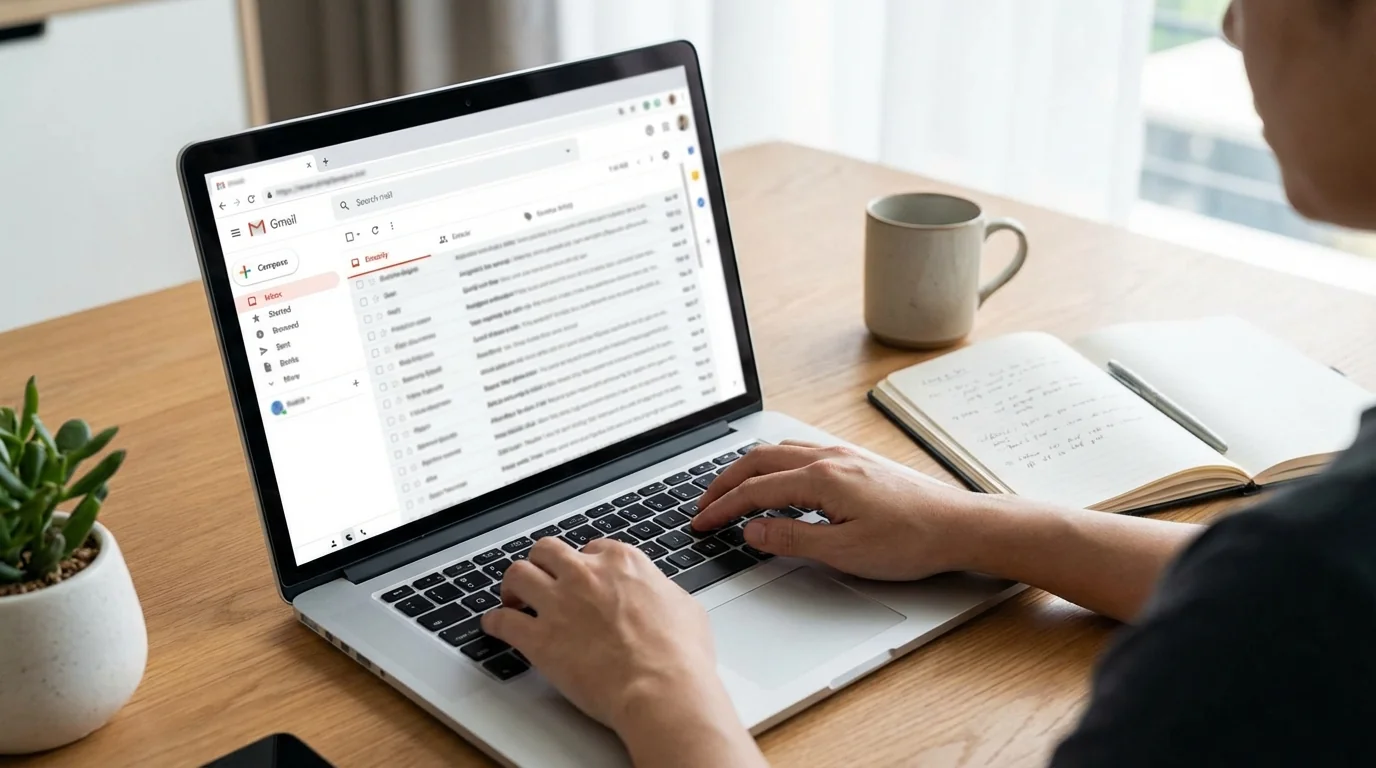
Prerequisites/Before You Start
- Gmail account: Make sure you can access it through a web browser or the Gmail app.
- Familiarity with the interface: Understanding the basic layout will be helpful.
- Desktop browser access: Recommended for web-specific features.
Step-by-Step Instructions
Method A: Gmail’s Built-in "Manage Subscriptions"
- Open Gmail: Log in on your desktop or open the app on your mobile device.
- On the web: Access via your browser.
- On mobile: Tap the menu icon and scroll down.
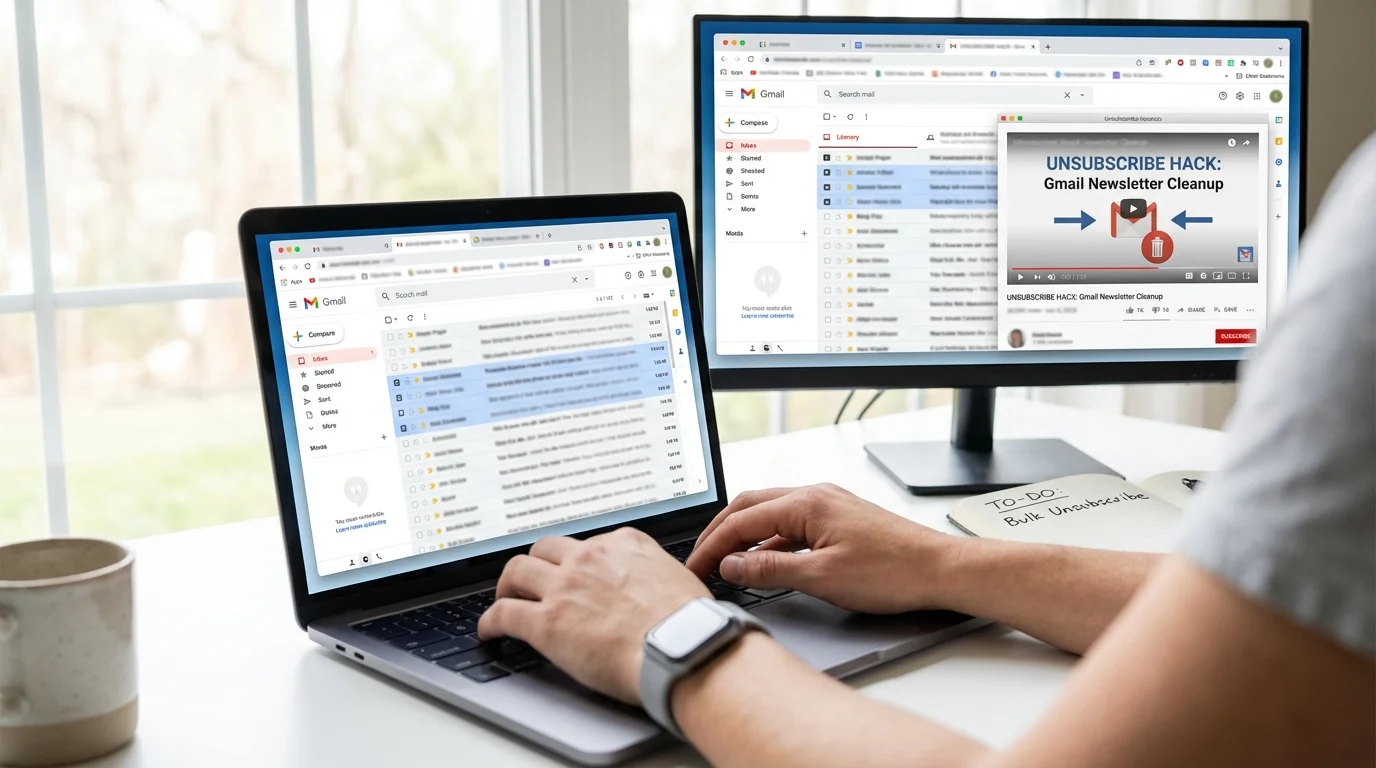
-
Find Manage Subscriptions:
- On the web: Click More in the sidebar, then select Manage subscriptions.
- On mobile: Within the menu, locate and tap Manage subscriptions. -
View Subscriptions List: You will see a list showing the senders of your newsletters.
-
Unsubscribe: Select Unsubscribe next to each sender you want to remove.
-
Repeat: Continue until you've unsubscribed from all unnecessary newsletters.
Method B: Using Gmail's Search Function
-
Use the Search Bar: Type
label:^unsubto bring up promotional emails. -
Refine Your Search: Include
larger_than:100kto find bulkier emails. -
Select Emails: Check the boxes to choose multiple emails.
-
Unsubscribe or Delete: Open emails to use the Gmail unsubscribe link or delete them.
Method C: KeepKnown Solution
- Set Up KeepKnown: Install and configure KeepKnown to filter newsletters automatically.
- Whitelist Important Senders: Ensure important emails aren't filtered by adding them to the whitelist.
Consider using KeepKnown to automatically sort emails from unknown senders into a separate label for easier management.
Troubleshooting
- Manage Subscriptions Not Available: Ensure your app or browser is up-to-date and try again later.
- Unsubscribe Link Missing: If you can't find an unsubscribe link, consider blocking the sender.
- Emails Keep Coming: If you keep receiving messages after unsubscribing, block or mark them as spam.
Conclusion
By following these steps, you've effectively cleaned up your Gmail inbox from unwanted newsletters. To keep your email organized, explore using KeepKnown for ongoing management. For more Gmail tips, check out our Master Auto-Archiving: Declutter Gmail Effortlessly tutorial.