
Prerequisites/Before You Start
- A computer or mobile device with internet access.
- At least two existing Gmail accounts.
- Basic familiarity with Gmail’s interface.
Step-by-Step Instructions
A. Use Gmail’s Built-In Multiple Sign-In / Account Switcher
- Click your profile picture in the top right corner of Gmail.
- Select Add another account and sign in to your second Gmail.
- Switch between accounts by clicking your profile picture again and selecting the desired account.
:::tip
Switching accounts keeps all your emails separate but accessible in one place.
:::
B. Set Up Email Forwarding and Filters for Centralization
- In the secondary Gmail, go to Settings and choose Forwarding and POP/IMAP.
- Add a forwarding address to send emails to your primary Gmail account.
- In the primary Gmail, create filters in Settings under Filters and Blocked Addresses to apply labels like ‘Work’ or ‘Personal’ to incoming emails.
:::tip
This method helps keep your primary inbox organized by categorizing emails automatically.
:::
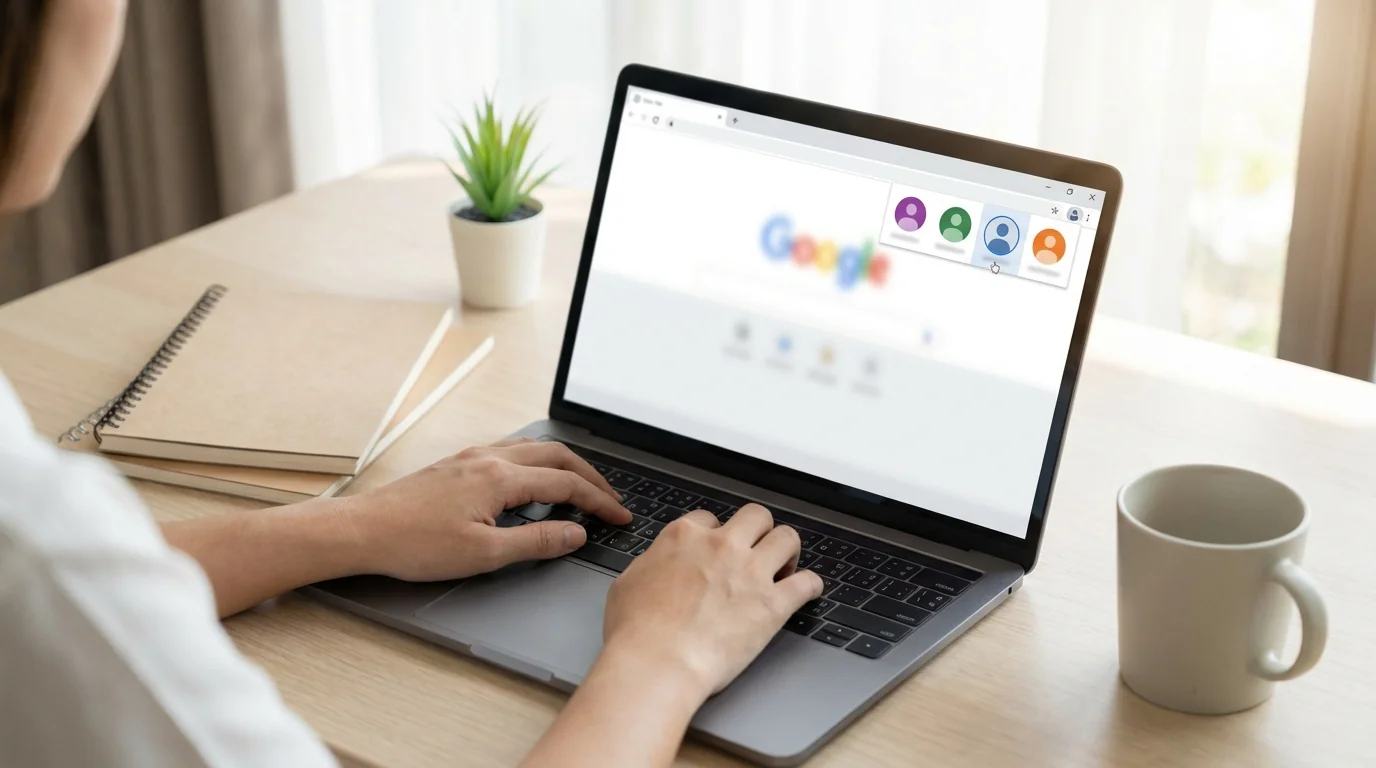
C. Use Browser Profiles
- Manage multiple profiles by clicking the user icon at the top right of your browser and selecting Add person.
- Sign in to each Gmail account separately in its browser profile.
:::tip
Using browser profiles keeps cookies, extensions, and bookmarks separate for each account.
:::
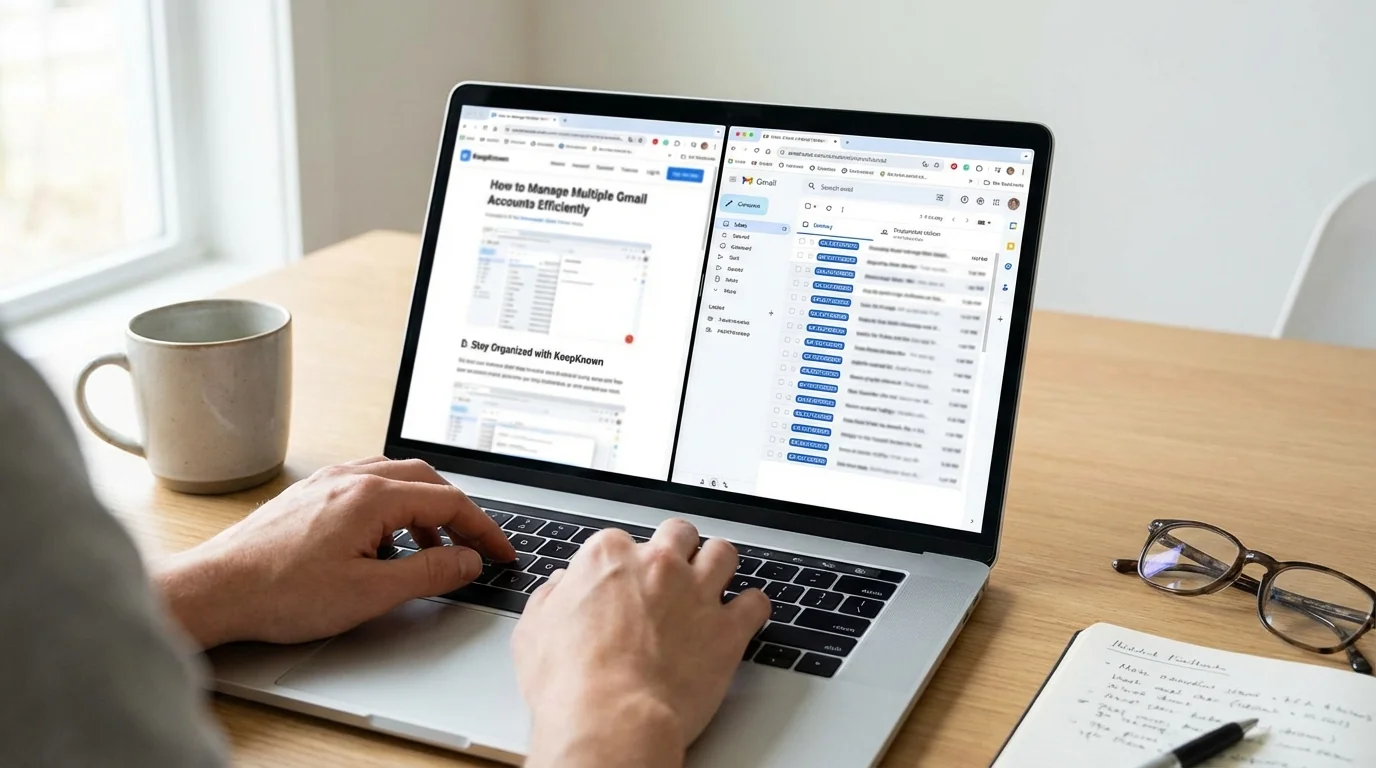
D. Stay Organized with KeepKnown
- Set up KeepKnown to automatically filter emails from unknown senders, reducing clutter by labeling them as "KK:OUTSIDERS."
- Whitelist trusted domains to bypass filtering for essential emails.
:::info
KeepKnown ensures you focus on important emails by filtering out distractions.
:::
E. Mobile Management with Gmail App
- Open the Gmail app on your Android or iOS device.
- Tap your profile icon to switch accounts or use the ‘All inboxes’ view to see emails from all accounts.
:::tip
Swipe gestures make it easy to switch between accounts on the go.
:::
Troubleshooting
- Mixing up accounts: Assign distinct images or initials to each profile.
- Forwarding confusion: Ensure the “From” address matches the intended account when replying.
- Account switcher issues: Clear browser cache or switch to incognito mode if the switcher isn't working.
Conclusion
By following these steps, you've learned how to efficiently manage multiple Gmail accounts, ensuring organization and accessibility. Next, explore how KeepKnown can further streamline your email management and improve productivity.