It might be hard to keep up with your emails when your inbox is full of emails from websites you don't remember signing up for, old newsletters combined alongside urgent work emails. Gmail filters are a very useful and easy-to-use tool that allows you to automatically organize incoming emails, keeping your inbox clutter-free.
In this guide, we’ll walk you through how to create filters in Gmail step by step and show you how they can improve your overall email management and organization.
What Are Gmail Filters?
Gmail filters are customizable rules that you set up to automatically manage incoming emails. For example, you can:
- Send newsletters directly to a “Newsletters” folder.
- Automatically delete spam messages.
- Apply labels for easy categorization.
Instead of sorting emails manually, Gmail filters do the work for you. It’s one of the easiest ways to improve email management.
How to Filter Emails in Gmail
When it comes to Gmail, the term “filtering” can mean two different things:
- Using the search bar to quickly find specific emails
- Creating Gmail filters (rules) that automatically sort incoming mail
For example, if you would like Gmail to automatically delete promotional emails, one of the easiest ways to do this is by searching for a keyword that nearly all of these messages include, for example, “unsubscribe.”
After searching for the keyword, all emails containing the word “unsubscribe” will appear, then select “Create filter” to build a rule. From there, you can decide what happens to future emails that meet those conditions, whether that’s deleting them, skipping the inbox, or moving them into a specific folder.
Using this method is a quick and effective way to keep your Gmail inbox organised without having to sort every message manually.
Step-by-Step Guide on How to Create a Gmail Filter
Step 1: Open Gmail
Log in to your Gmail account at mail.google.com.
Step 2: Open Search Options
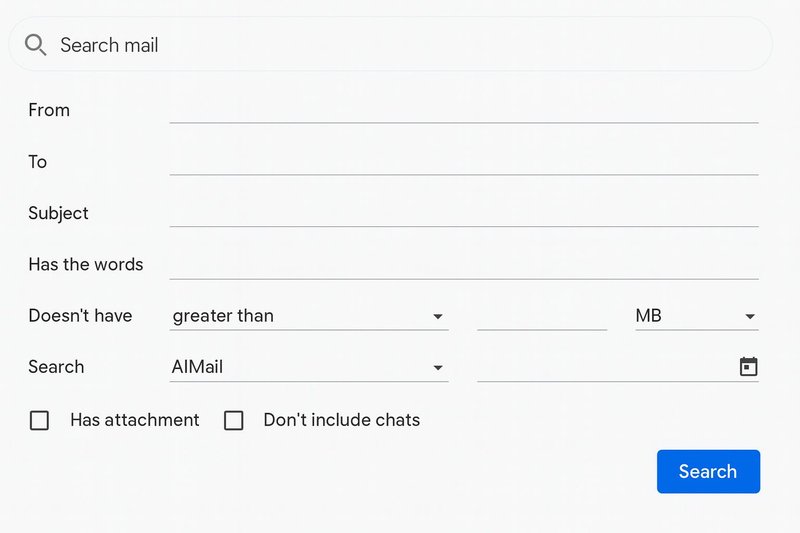
Click the downward-facing triangle in the Gmail search bar at the top. This opens the advanced search box.
Step 3: Define Your Filter Criteria
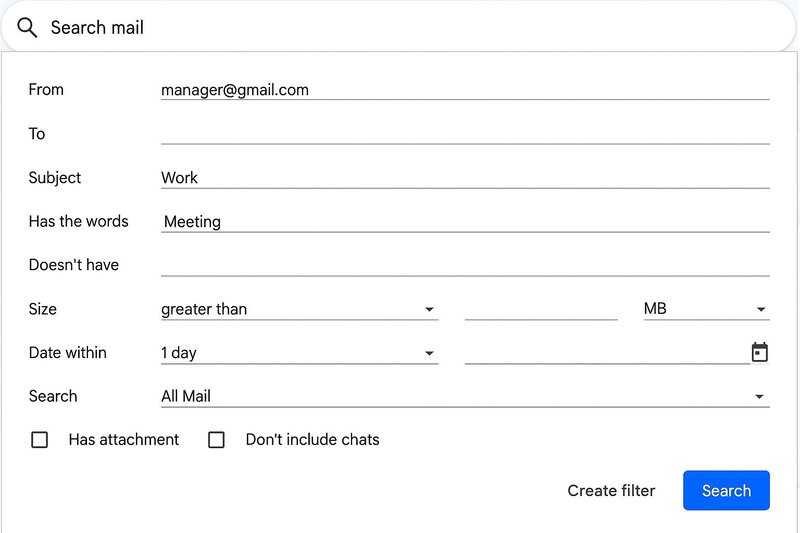
Enter the specific criteria that determine which emails should be filtered, such as:
- From: Filter emails from a specific sender.
- Subject: Filter by subject keywords.
- Has the words: Filter messages containing certain text.
- Size: Sort emails based on file size.
- Has attachment: Only include emails with attachments.
Step 4: Create the Filter
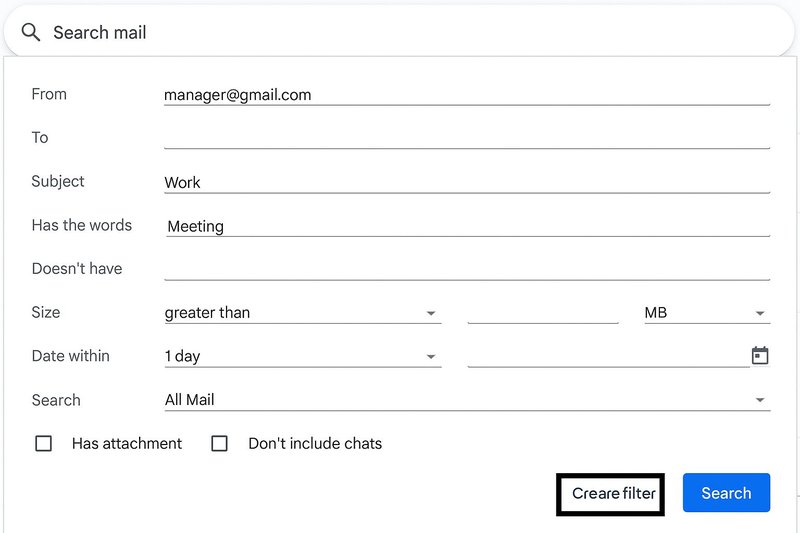
Click “Create filter” in the bottom-right corner of the search box.
Step 5: Choose an Action
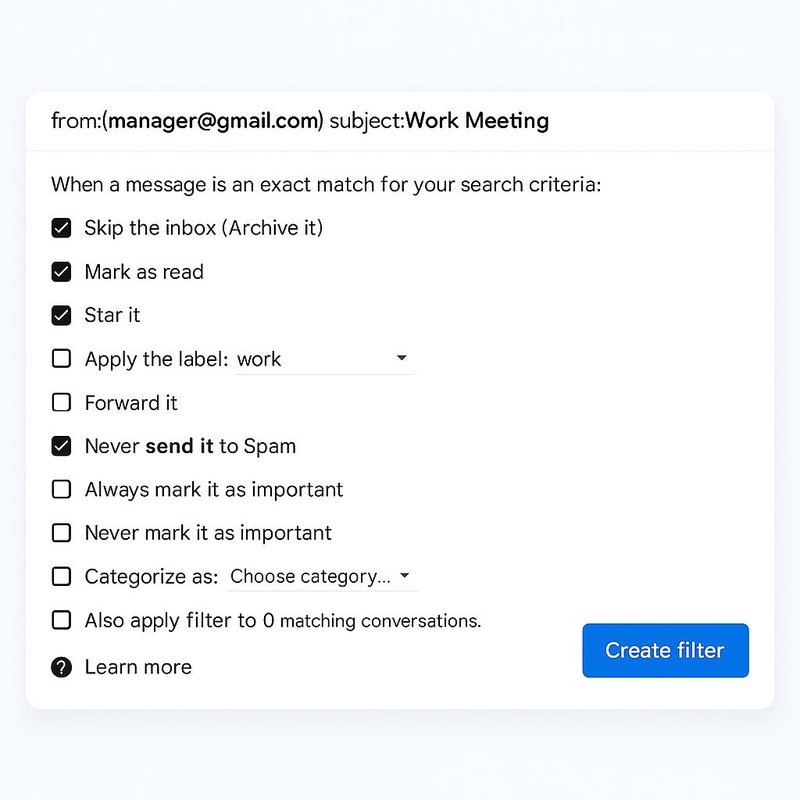
Decide what happens when an email matches your filter:
- Skip the Inbox (Archive it): Moves the email out of your main inbox and stores it in “All Mail,” keeping things tidy without deleting it.
- Mark as Read: Lets the email stay in your inbox but shows it as already opened, so it doesn’t appear as a new message.
- Star it: Highlights the email with a star so it’s easier to find later.
- Apply a Label: Automatically tags the email with a label (like a folder), helping you organize by topic or category.
- Delete it: Sends the message straight to the Trash folder.
- Never Send to Spam: Ensures Gmail won’t mistakenly filter that email into your Spam folder.
- Always Mark as Important: Flags the message as important so it stands out in your inbox.
- Never Mark as Important: Prevents Gmail from highlighting the email as important.
- Categorize As: Places the email into one of Gmail’s built-in categories (such as Primary, Promotions, Social, or Updates).
- Apply Filter to Matching Conversations: Applies the filter not only to new emails but also to existing messages in your account that meet the same conditions.
Step 6: Save the Filter
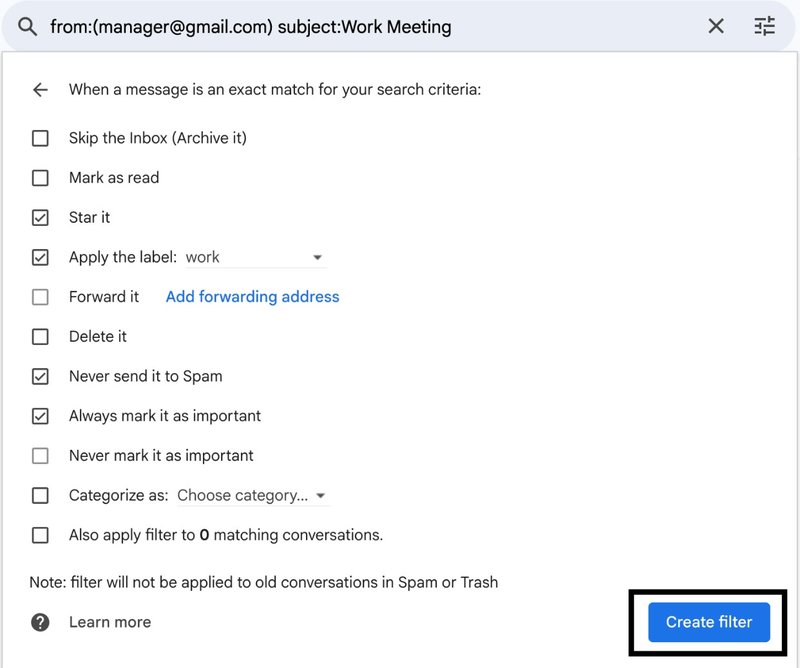
Click “Create filter.” Your filter will now automatically handle incoming emails.
For example, want all newsletters to go into a separate folder? This is how to do it:
- In Step 3, type unsubscribe in “Has the words.”
- In Step 5, select Skip the Inbox and Apply the label → Newsletters.
From now on, Gmail will neatly organise your newsletters without you lifting a finger.
Filter Your Mail with Emailgurus
With Emailgurus, you’ll find that email management becomes a lot easier, saving you time to focus on what’s important, by automatically sorting out your messages and giving. Try it today!