
1. THE OUTCOME
You will set Gmail and Outlook to treat every email from a specific domain (example: @example.com) as trusted—typically keeping it out of Spam/Junk and/or forcing it into the Inbox. You’ll also understand why this “trust the whole domain” move often backfires: it expands your attack surface, can be unreliable (provider safety overrides), and hides sender authentication problems that should be fixed upstream.
2. BEFORE YOU START
- Required (Gmail): Gmail in a desktop browser (filters are easiest and most complete on web)
- Required (Outlook): Outlook Web (Microsoft 365/Outlook.com) and/or Outlook Desktop (Windows/macOS)
- Required (permissions): Ability to edit Filters (Gmail) or Junk email / Safe senders (Outlook). On corporate accounts, IT may lock this.
- Optional but helpful: Add at least one legitimate sender from the domain to Contacts (improves trust signals in practice)
- Optional but important: Confirm the sender domain authenticates mail (SPF/DKIM/DMARC). If they don’t, whitelisting becomes a band-aid.
- Time estimate: ~10 minutes for Gmail + Outlook web, ~3 extra minutes for Outlook desktop. Add 10–15 minutes if org policy blocks settings.
Whitelisting an entire domain is a security decision, not an inbox preference. If the domain is compromised—or an attacker successfully spoofs it—malicious mail can land where you’re most likely to click.
3. THE STEPS
Step 1: Decide the exact domain you’re trusting
Pick the domain you want to allow-list, and write it down in domain-only format.
- Use: @example.com
- Not: example.com (often mis-parsed)
- Not: someone@example.com (that’s an address, not a domain)
Expected result: You have a single value ready to paste, like @example.com.
If the sender uses multiple domains (common after mergers or vendor rebrands), do not guess. Ask for their official sending domains.
Step 2: Confirm you’re solving the right problem (Spam vs missing mail)
Before changing anything, find one message from that domain.
- In Gmail, use the search bar: from:(*@example.com)
- In Outlook, search: from:example.com
If you can’t find any messages, the issue may be:
- The sender never sent it
- It was blocked upstream (authentication failure, malware)
- Your admin quarantined it
Expected result: You can see at least one example message (Inbox, Spam/Junk, or Quarantine).
If you’re on a corporate account and the message is missing everywhere, check with IT for Quarantine. User-level whitelists don’t override some admin controls.
Step 3: Create a Gmail filter that matches the domain
In Gmail (desktop web):
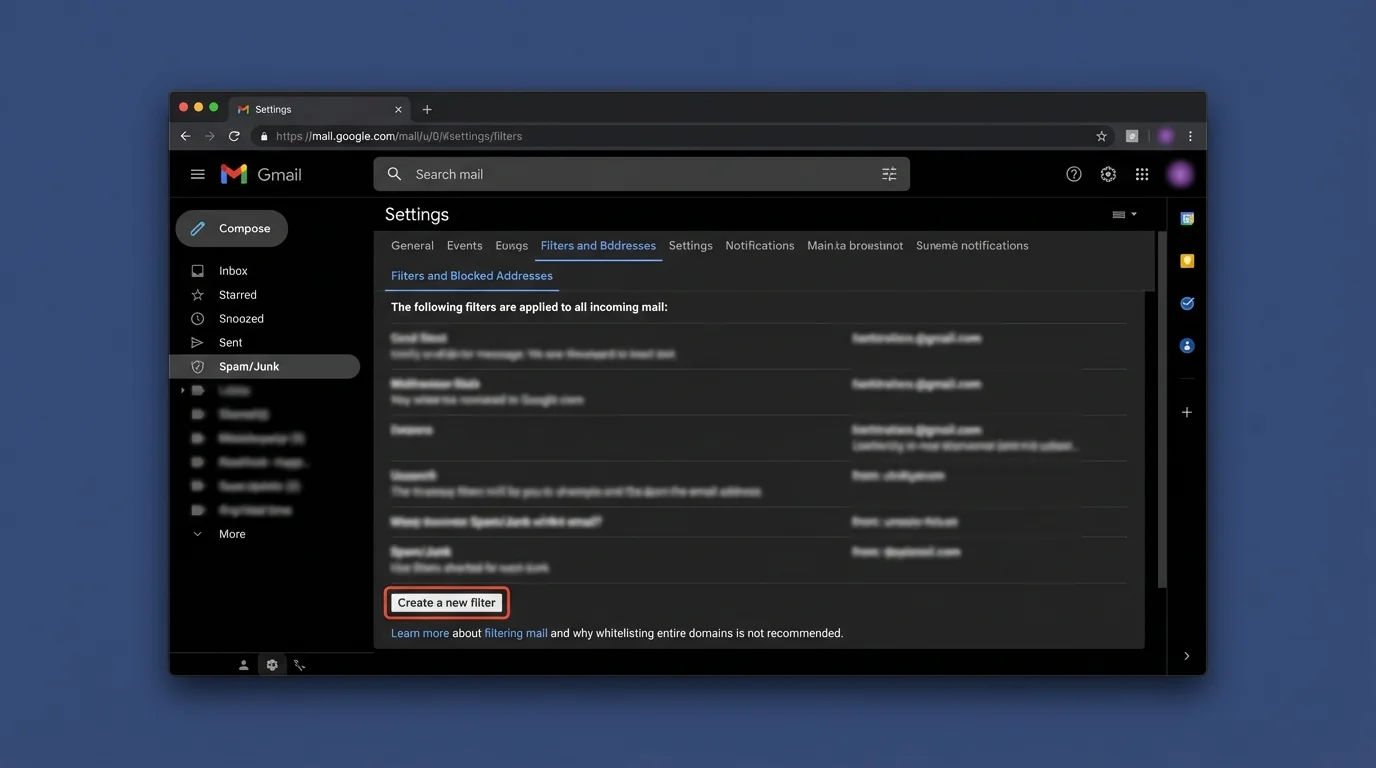
1. Click Settings (gear) → See all settings
2. Click Filters and Blocked Addresses
3. Click Create a new filter
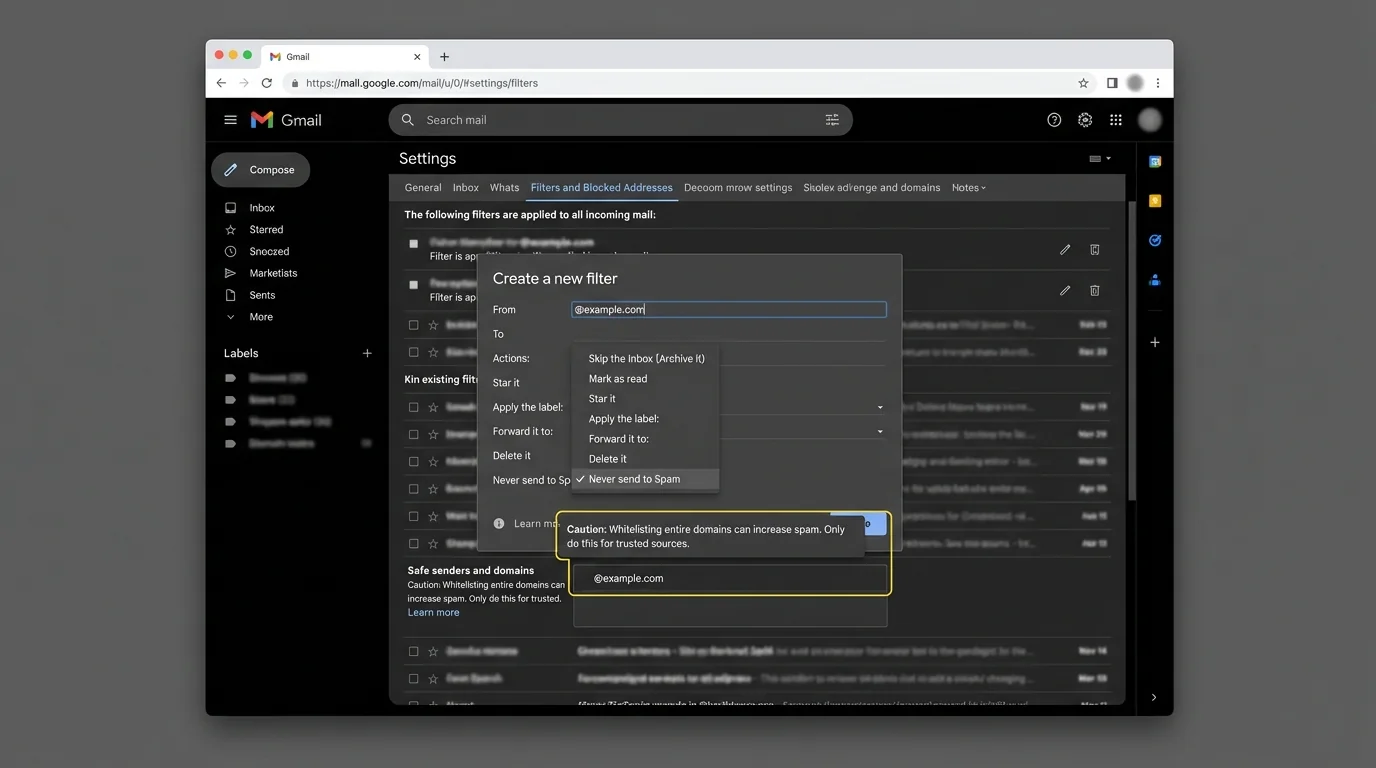
4. In From, type @example.com
5. Click Create filter
Expected result: Gmail shows filter actions you can apply to messages matching @example.com.
The leading @ matters. Many “it didn’t work” cases come from typing example.com instead of @example.com.
Step 4: Set Gmail to keep that domain out of Spam
In the filter actions screen:
1. Check Never send it to Spam
2. Optional: check Also apply filter to matching conversations (only if you want this to affect existing messages)
3. Click Create filter
Expected result: A new filter appears in Filters and Blocked Addresses, and future mail from @example.com is less likely to land in Spam.
This does not guarantee delivery. Gmail may still block or reroute mail that fails strong safety checks (spoofing, malware, severe reputation issues).
Step 5: Add a label in Gmail (so you can audit what you just trusted)
Whitelisting without visibility is how problems hide.
To label the mail:
1. Go back to Settings → See all settings → Filters and Blocked Addresses
2. Find your new filter → click edit
3. Click Continue
4. Check Apply the label → choose New label… → name it Trusted: example.com
5. (Optional) Check Categorize as → Primary (if available)
6. Click Update filter
Expected result: Messages from @example.com get a clear label so you can review volume and spot anomalies.
If you’re doing this because of “spam bombing” or random signups, labeling helps prove whether the domain is actually the issue. See also: /blog/stop-gmail-spam-bombing-fast/
Step 6: Whitelist the domain in Outlook Web (Microsoft 365 / Outlook.com)
In Outlook on the web:
1. Click Settings (gear) → View all Outlook settings
2. Click Mail → Junk email
3. Under Safe senders and domains, click Add
4. Type @example.com
5. Click Save
Expected result: @example.com appears under Safe senders and domains.
If it “doesn’t stick” after saving, your organization may be enforcing junk settings. Skip ahead to Troubleshooting.
Step 7: Remove conflicts in Outlook (blocked list and rules)
Outlook can contain contradictions.
In Outlook Web:
1. Go to Settings → View all Outlook settings → Mail → Junk email
2. Check Blocked senders and domains
3. If you see example.com or a related entry, select it → click Remove
4. Click Save
Expected result: The domain is not simultaneously blocked and allowed.
If you keep a domain in both places, the provider may choose “blocked” behavior. Resolve contradictions before testing.
Step 8: Add an Outlook rule (only if safe senders isn’t enough)
If Outlook still routes mail to Junk, a rule can force placement.
In Outlook Web:
1. Go to Settings → View all Outlook settings
2. Click Mail → Rules
3. Click Add new rule
4. Name it Allow example.com
5. Under Add a condition, choose From → enter @example.com
6. Under Add an action, choose Move to → Inbox (or a folder like Trusted)
7. Click Save
Expected result: Matching messages are moved as soon as they arrive.
If you’re using Focused Inbox, rules can still work but create “why is it over there?” confusion. If you want deterministic behavior, disable algorithmic sorting: /blog/disable-focused-inbox-clutter-outlook/
Step 9: Whitelist the domain in Outlook Desktop (Windows/macOS)
In Outlook Desktop:
1. Click Home tab
2. Click Junk → Junk E-mail Options
3. Click the Safe Senders tab
4. Click Add
5. Enter @example.com
6. Click OK
Expected result: The domain appears in Safe Senders, and Outlook is less likely to classify it as junk locally.
From a message you’ve received: Home → Junk → Never Block Sender or Never Block Sender’s Domain (fastest path when available).
Step 10: Test with a controlled email and verify the landing folder
Send a test message from an address on that domain (or ask the sender to).
- In Gmail: confirm it lands in Inbox and carries label Trusted: example.com
- In Outlook: confirm it lands in Inbox (or your chosen folder) and not Junk Email
Expected result: The message appears where you expect within 1–2 minutes.
If Gmail/Outlook still diverts or blocks it, don’t keep stacking more “trust” settings. That usually means the sender’s authentication/reputation is broken or your admin policy is blocking it.
Step 11: Set a calendar reminder to review what you just allowed
Domain allow-listing tends to become permanent by accident.
- Create a reminder for 30 days
- Review the labeled/foldered messages
- Decide whether to narrow to a single address or a subdomain
Expected result: You avoid “set-and-forget” trust that becomes a long-term security hole.
4. COMMON PATTERNS (copy-paste examples)
These are the patterns people actually use—plus the safer alternative when possible.
Pattern A: Vendor receipts and system notifications
- Goal: Never miss billing/receipts
- Gmail filter: From =
@vendor.com→ Action = Never send to Spam + LabelTrusted: vendor.com - Outlook web: Safe senders and domains add
@vendor.com
Better: Allow-list only the sender(s) that actually mail you, like billing@vendor.com and no-reply@vendor.com, instead of the whole domain.
Pattern B: Recruiting and job platforms
- Goal: Keep candidate messages out of Junk
- Outlook rule: Condition From =
@platform.com→ Action Move toRecruiting
Better: Allow-list a dedicated recruiting alias plus your ATS known senders; don’t broadly trust every message a large platform domain can originate.
Pattern C: Partner organization with many departments
- Goal: Ensure cross-org collaboration mail arrives
- Gmail filter: From =
@partner.org→ Action = Never send to Spam + LabelTrusted: partner.org
Better: Ask the partner for their official sending subdomains (example: @mail.partner.org) and restrict to those.
Pattern D: Newsletters and marketing blasts
- Goal: Stop newsletters from hitting Spam
- Gmail filter: From =
@newsletter.com→ Action = LabelNewsletters+ (optional) Skip Inbox (Archive it)
Better: Don’t domain-whitelist newsletters. If they get compromised, you just gave attackers a clean lane to your Inbox.
5. WHY YOU SHOULD NOT WHITELIST ENTIRE DOMAINS
Whitelisting a whole domain feels like “make sure I get these emails.” What it really means is: “I trust anything that claims to be from this domain enough to reduce filtering and increase visibility.” That’s the wrong default for modern email.
Risk 1: A domain is not a person (it’s an attack surface)
A single domain can send mail from:
- Hundreds of legitimate employees
- Automated systems
- Third-party mailers acting on their behalf
- Compromised accounts
When you trust the domain, you trust all of the above.
Risk 2: Spoofing and lookalike pressure increases
Even with SPF/DKIM/DMARC, spoofing attempts still happen. Providers sometimes override user-level allow-lists to protect you (which is good), but when they don’t, a domain allow-list increases the odds a malicious message hits your Inbox at the exact moment you’re busy.
Risk 3: It hides the real fix: sender authentication
If a sender’s mail is landing in Spam/Junk consistently, common root causes are:
- Missing or broken SPF
- Missing DKIM signing
- Weak or absent DMARC policy
- Poor sending reputation
Whitelisting trains teams to accept broken setups instead of fixing them. The correct long-term move is: require authenticated mail, don’t override filters.
Risk 4: Whitelists are unreliable (providers and admins can override you)
Real-world behavior varies:
- Gmail may still block messages that trip anti-spoof or malware systems
- Outlook may still route to Junk due to Microsoft filtering or tenant policy
- Corporate policies may wipe or ignore personal safe sender entries
So you take on risk and you may not even solve delivery.
Risk 5: It increases decision fatigue later
Domain-whitelisting is “one big switch.” If it becomes noisy or abused later, you’re back to:
- More scanning
- More manual triage
- More anxiety around notifications
That’s the same failure mode as algorithmic sorting. More on that cost: /blog/context-switching-costs-silent-inbox-roi/
6. THE BETTER WAY (The KeepKnown Protocol)
If your goal is “never miss important mail,” domain-whitelisting is a blunt instrument. It assumes domains are trustworthy identities. They aren’t.
KeepKnown flips the model from probabilistic guessing (“spam filters”) to deterministic control (“only known senders get attention”):
- Mechanism: API-based email filter (server level, not a plugin)
- Action: Automatically moves non-contacts to a dedicated label/folder: KK:OUTSIDERS
- Result: Your Inbox becomes contact-first by default; outsiders are still accessible, just not interrupting you
- Security posture: OAuth2 verified, CASA Tier 2, encrypted hashes (no plaintext storage). More detail: /blog/vendor-risk-management-email-filter-casa/
Where this replaces domain-whitelisting:
- Instead of trusting @example.com forever, you approve specific people (or vetted contacts) and KeepKnown routes the rest away from the Inbox.
- Instead of fighting spam with better guesses, you run strict allow-listing—“known good” only—at scale.
This aligns with the “Open Inbox is a failed concept” reality: strangers shouldn’t get the same delivery lane as known contacts. If you want the methodology comparison (blacklists vs AI sorting vs strict allow-lists), use: /blog/best-email-filtering-methods-compared/
You can see the approach at https://keepknown.com.
7. TROUBLESHOOTING
Use this section when “I did the steps” but results don’t match.
If Gmail still puts the domain in Spam, then verify the match and Gmail overrides
- Confirm the filter From field is exactly
@example.com - Edit the filter and ensure Never send it to Spam is checked
- Send a fresh test email and re-check
- If it still lands in Spam, assume the message is failing authentication or tripping safety systems. The sender must fix SPF/DKIM/DMARC.
If the Gmail filter didn’t affect old emails, then apply it retroactively
- Edit the filter → re-run creation flow
- Check Also apply filter to matching conversations
If Outlook safe sender entries disappear or don’t save, then suspect policy enforcement
- Try again in Outlook Web: Settings → Mail → Junk email → Save
- If it won’t persist, your tenant likely enforces junk settings. Contact IT to allow it at the org level (or to adjust policy).
If Outlook still sends it to Junk, then remove contradictions and add a rule
- Remove the domain from Blocked senders and domains
- Add a Rule to move mail from
@example.comto Inbox (or a folder) - Retest with a new incoming message